| Article Body |
DNA matches are other AncestryDNA members who share DNA with you. With DNA matches turned on, you can see a list of your matches and how you may be related. They’ll also be able to see you on their match lists.
Your list will show you how related you are to the people you match with. Here's what your list may look like.
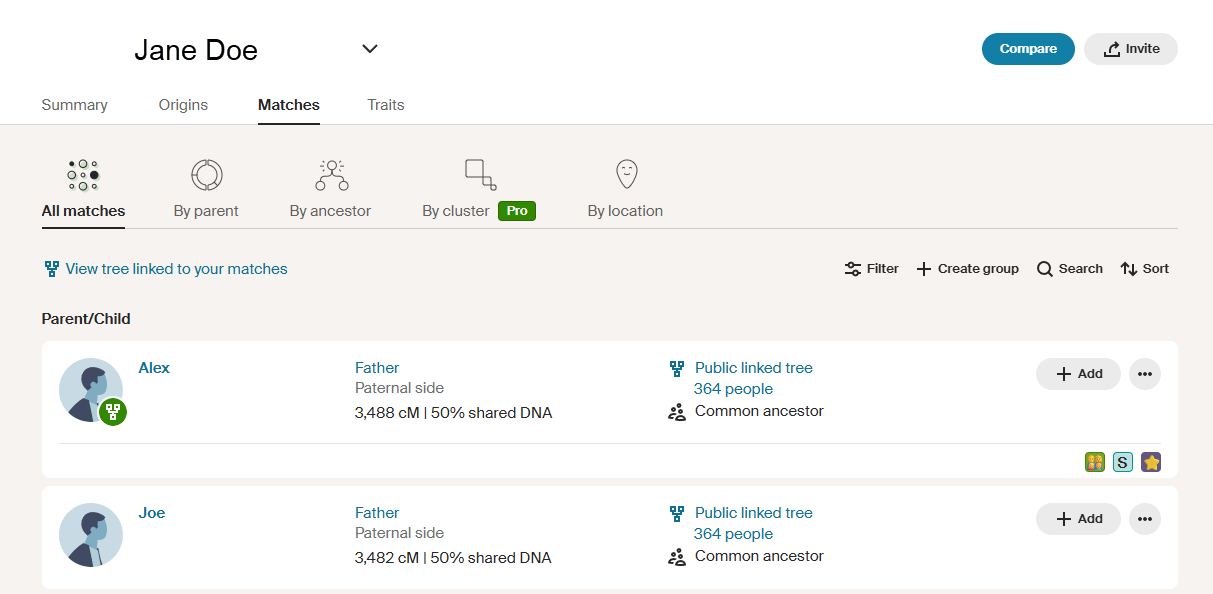
Your matches are based only on your DNA—we don't take your family trees into account. (Learn how we find matches.)
You can message your matches, write notes about each one, edit your relationships, organize them with groups and filters, and see if they have a family tree.
To see a your matches’ full trees or use the features that rely on access to trees (matching last names and birthplaces, common ancestors, and ThruLines), you'll need an Ancestry family history membership.
Viewing your AncestryDNA matches
To view your matches, you must first:
Note: If matches are turned off, you won’t be able to see or be seen by matches. If two-step verification is off and you sign in with your username or email instead of Apple or Google, you won’t be able to access your matches.
From a browser
- From any page on Ancestry, click the DNA tab and select Matches.
- Look through your list of matches. Don’t see your matches?
- Matches are sorted by how closely they’re related to you, with the closest predicted relationships appearing first and the most distant relationships last–this is also the amount of DNA you share, from most to least.
- Scrolling down will load more matches if others are available.
- Above your list of matches, you can choose to view all matches or matches by parent, ancestor, or location.
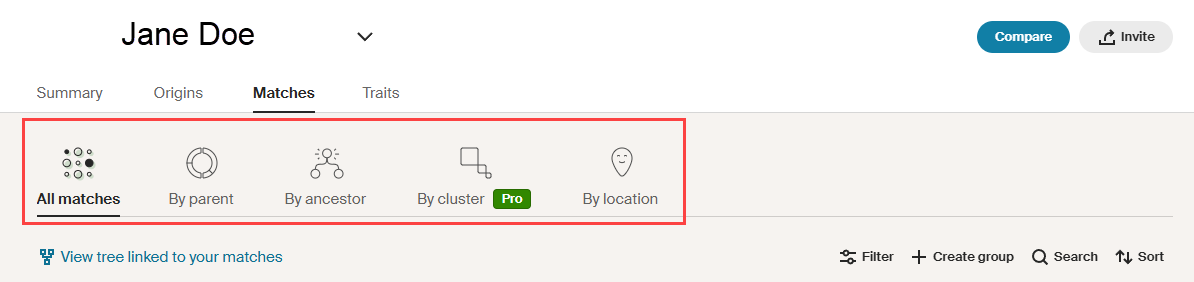 - Use groups and filters to limit the number of DNA matches you see to only those who match your selected groups and filters.
- New and unviewed matches are marked with a blue dot.
- Matches you’ve added to your list of favorites are marked with a star.
- To hide or unhide matches, see Hiding AncestryDNA Matches.
- To learn more about a match, click on the match’s name or username.

- (Optional) Choose to Connect to tree, send a Message, edit relationship, add to group, add note, compare Trees, compare Origins, or view shared matches.
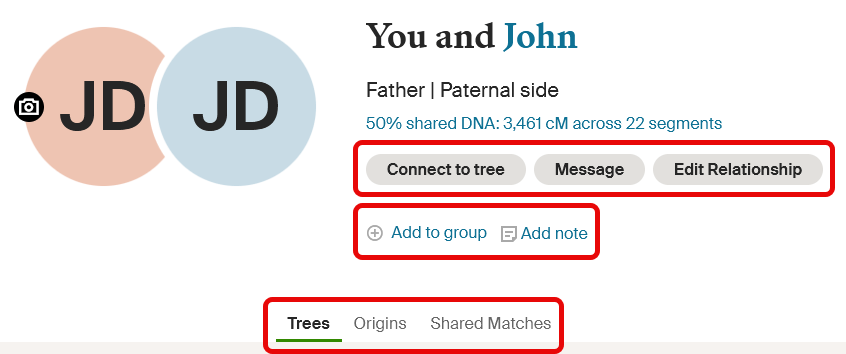
- Connect to tree: Click Connect to tree > in the opened side panel, enter their name and select it when it appears. That DNA match and person in your tree are now connected. For more information, see Connecting AncestryDNA Matches to Your Tree.
- Send a message: click Message > enter a message at the bottom of your screen > and click send.
- Edit relationship: To define the relationship that exists between you and that match, click Edit relationship > select a Side of the family > choose the relationship > and click Save. For more help, see Assigning Relationships to AncestryDNA Matches.
- Add to group: Click Add to group, then check the box next to the group(s) you want to add them to or choose to Create custom group. For more help with groups, see Grouping and Filtering AncestryDNA Matches.
- Add note: Click Add note > enter a note (up to 500 characters) about the match you’re viewing > and tap Save. Only you can see the notes you create here. For more information, see AncestryDNA Match Notes.
- Compare trees: click on the Trees tab.
- If they have a public linked tree, click on their tree to view it.
- If they have a private linked tree, click on it to send them a message asking permission to view it.
- Click on a common ancestor (someone that appears in both your tree and a match’s linked tree) to discover how you might be related to this match and see the relationship path (ThruLines) that connects you.
- Scroll to the Surnames section to see a list of last names that appear in both your tree and that match’s tree.
- Scroll down to Ancestor Birth locations to see a map of birth locations for ancestors that appear in both your tree and that match’s tree.
Note: To see a preview of your matches’ trees or use the features that rely on access to trees (common ancestors, matching surnames and birthplaces in matches’ trees, and ThruLines), you must have an Ancestry family history membership and a linked family tree. To link a tree to your DNA test, follow the steps in Linking a Tree to your AncestryDNA Results.
- Compare origins: Click on the Origins tab. Here, you’ll see a comparison of your and your match's ancestral regions. Your percentages are on the left, and their percentages are on the right. Regions showing 0% appear only in that person’s results—not in both.
- View shared matches: Click on the Shared matches tab. Here, you’ll see a list of other AncestryDNA members who share DNA with you and the match you’re viewing. To access shared matches, you must have an Ancestry family history membership.
From the app
- Open the Ancestry app and sign in.
- In the bottom-right corner of your screen, tap DNA and then select Matches at the top.
- Look through your list of matches. Don’t see your matches?
- Matches are sorted by how closely they’re related to you, with the closest predicted relationships appearing first and the most distant relationships last–this is also the amount of DNA you share, from most to least.
- Scrolling down will load more matches if others are available.
- New and unviewed matches are marked with a blue dot.
- Matches you’ve added to your list of favorites are marked with a star.
- To learn more about a match, tap on the match’s name or username.
- (Optional) Choose to add a note, send a message, compare trees, view shared matches, or compare origins.
- Add a note: tap the document icon > enter a note (up to 500 characters) about the match you’re viewing > and tap Save. Only you can see the notes you create here.
- Send a message: tap the chat
 icon > enter a message at the bottom of your screen > and tap the up arrow to send. icon > enter a message at the bottom of your screen > and tap the up arrow to send. - Compare trees: tap the Trees tab.
- If they have a public linked tree, tap on their tree to view it.
- If they have a private linked tree, tap on it to send them a message asking permission to view it.
- Tap a Common Ancestor to discover how you might be related to this match and see the relationship path that connects you.
- Scroll to the Surnames section and swipe left or right to see a list of last names that appear in both your tree and that match’s tree.
- Scroll down to Birth locations to see a map of birth locations for ancestors that appear in both your tree and that match’s tree.
Note: To see a preview of your matches’ trees or use the features that rely on access to trees (matching surnames and birthplaces in matches’ trees and common ancestors), you must have an Ancestry family history membership and a linked family tree. To link a tree to your DNA test, follow the steps in Linking a Tree to your AncestryDNA Results.
- View shared matches: Tap on the Shared matches tab. Here, you’ll see a list of other AncestryDNA members who share DNA with you and the match you’re viewing. To access shared matches, you must have an Ancestry family history membership.
- Compare origins: Tap the Origins tab. Here, you’ll see a comparison of your and your match's ancestral regions. Your percentages are on the left, and their percentages are on the right. Regions showing 0% appear only in that person’s results—not in both.
Frequently asked questions
Select a question below to view the answer. Select the question again to hide it.
Why don’t I see my list of DNA matches?
There are several reasons why your list of DNA matches might not be displayed. Some of the most common reasons are:
- Multiple managed tests: If you have more than one DNA test on your account, you may be looking at someone else’s list of matches. If you’re accessing Ancestry through a web browser, see Accessing Another AncestryDNA Test on Your Account, or for help within the Ancestry app, see Switching AncestryDNA Tests in the Ancestry App.
- Matches are turned off: If you have matches turned off, you won’t be able to see your DNA matches. To turn on matches, follow the steps in Turning Matches On or Off.
- Multiple Ancestry accounts: If you’ve registered an AncestryDNA kit, try signing out and signing in to another account. For help locating possible accounts, please contact us.
- Kit not registered: If you haven’t registered your DNA kit, it won’t be linked to your account, and as a result, you won’t be able to see your results or matches. To resolve this, see Registering an AncestryDNA Kit. If your code is permanently gone and your kit isn’t registered, we’ll need to send you another kit, even if you mailed your sample. Contact us to request a replacement kit.
- Non-AncestryDNA test: If you participated in a DNA test other than AncestryDNA, your matches won’t be displayed in the Ancestry app. Our match list is specific to AncestryDNA.
Why don’t I have any DNA matches?
There are several reasons why you might not have any DNA matches yet. Some of the most common reasons are:
- Not enough people from your area or background have taken AncestryDNA tests, or the few who have tested aren’t close enough genetic relatives to match.
- Your genetic relatives haven’t taken AncestryDNA tests, or they may have chosen not to see and be seen by matches.
As more people take DNA tests, you could get DNA matches in the future.
Why isn’t a relative showing as a DNA match?
There are several reasons why a biological relative who took a DNA test might not appear as a match to you; for some of the common reasons why, read Missing matches.
What can I see with and without a membership?
To learn what you can access with or without a membership, see AncestryDNA and Memberships.
Who can see the notes I write about my matches?
Only you can see the notes you create about your matches.
Why are my shared matches locked?
Shared matches are now part of Ancestry family history memberships. To unlock access to shared matches, purchase an Ancestry family history membership.
Why can’t I see common ancestors or matching surnames and birthplaces in matches’ trees anymore?
To see common ancestors and matching surnames and birthplaces in matches’ trees, you must have an Ancestry family history membership and a linked family tree. To link a tree to your DNA test, follow the steps in Linking a Tree to your AncestryDNA Results.
Why can’t I access shared matches, common ancestors, and matching surnames and birthplaces in matches’ trees anymore?
The match relationship tools mentioned are now part of Ancestry family history memberships, which are now required for access.
Can I download or export my list of DNA matches?
DNA match lists cannot be downloaded or exported at this time.
|
|
|---|